Application Management Getting Started Guide
Attachment application portals are configurable, making each one unique. While they tend to be different, there are some features that are ubiquitous. We'll cover those features and how to use them in this general guide. The screenshots you see are to provide visual reference; some of the attributes, colors, and buttons they display will differ from your attachment application portal.
Creating an Account

When you navigate to the attachment application portal, the Sign-In page will greet you. If you have not already created an account, you can do so by selecting the "I do not have an account" link at the bottom of the Sign-In page.
Enter your email, choose to either be a contractor or an attacher, and enter your company name(s). Once you have signed up, the portal will send you an email link to set your password and sign in.
New users will need to request permission from the attachment owner to submit an application on their behalf. If you created a new company in the system, a portal administrator will have to approve you. While you are awaiting approval, you can begin drafting as many applications as you would like.
Creating an Application
When you log in, you'll land on the Overview dashboard. Once you create applications, they'll show up here.

Click the "+ Create" button at the top right of the toolbar at the top of the screen. Choose the appropriate application type.
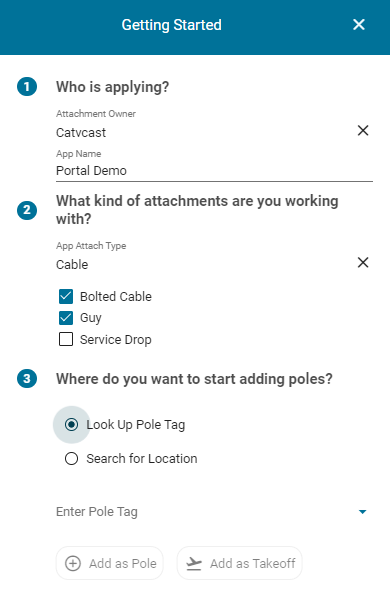
Follow the steps that appear in the Getting Started window that pops up, beginning with who's applying. Select what kind of attachments you are working with. Finally, enter where you want to start adding poles. You can look up the pole tag and add it as a pole or the takeoff pole, or you can search at a specific location by providing an address.
Adding Poles
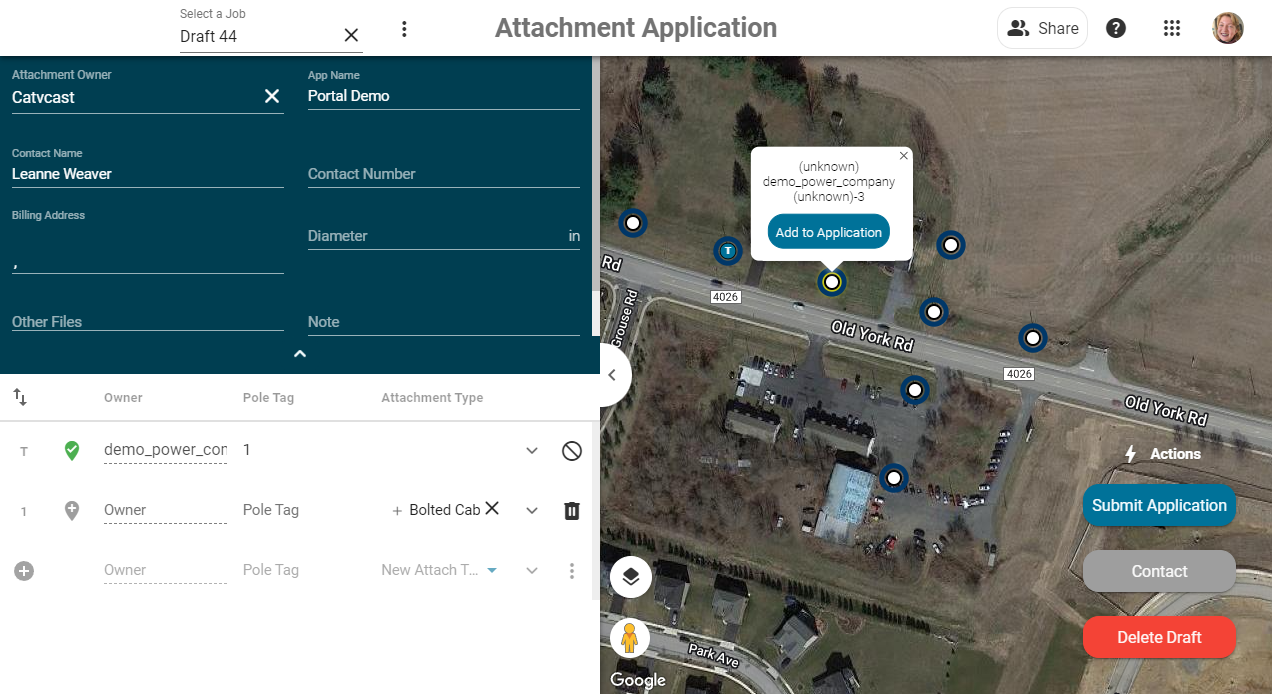
Either method will zoom you into the map, where you'll see icons representing poles. You can click on a pole to view more information, then click "Add to App" to add it to your application.
Application Information

Adding at least one pole to your application creates a draft. You'll see a pop-out on the left-hand side of the screen. Fill out information about your application, found at the top of this pop-out.
Table of Poles Added to App
Towards the bottom of this pop-out are the poles that are added to the application. Any pole information already stored on the pole should show up in the table here. On the left-hand side of the table is the order of the pole in the application. The "T" stands for the takeoff pole. When you hover over the order (i.e. T, 1, 2, etc.), your cursor will turn into a multi-directional cursor. You can then click and drag that pole to change its order. (Depending on you application, you may not need a takeoff pole.)

Each row of the table represents a pole. Refer to the table headers to understand the inputs displayed in the table. For example, you may have an "Owner" header, and in that section of the row you'll fill out the pole owner. Inputs may have an "X" to the right of it — clicking this clears the input should you want to add a different value.

Each row will have an expandable arrow for more details.

The trash can icon to the far right will remove the pole from the application.
Submit Application
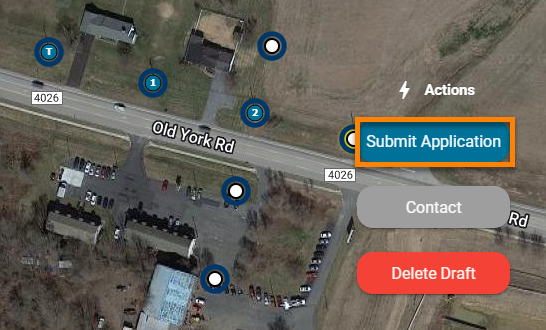
Once you've filled out all the application information, including all the poles with their proper inputs, you can click on "Submit Application" in the bottom right corner. Once you've submitted your application, you cannot make any changes.
If needed, you also have the option to "Delete Draft" and start all over again. This will automatically redirect you back to the App Overview Dashboard.
In this bottom-right corner will be Action buttons that allow you to take action on your application. For example, if you submit your application, you'll notice a "Cancel Application" button that allows you to cancel the application.
Once you've submitted your application, navigate to the App Overview dashboard using the nine-square App Tray menu to the right in the toolbar at the top. Click on the App Tray and find the "App Overview" option.
App Overview Dashboard
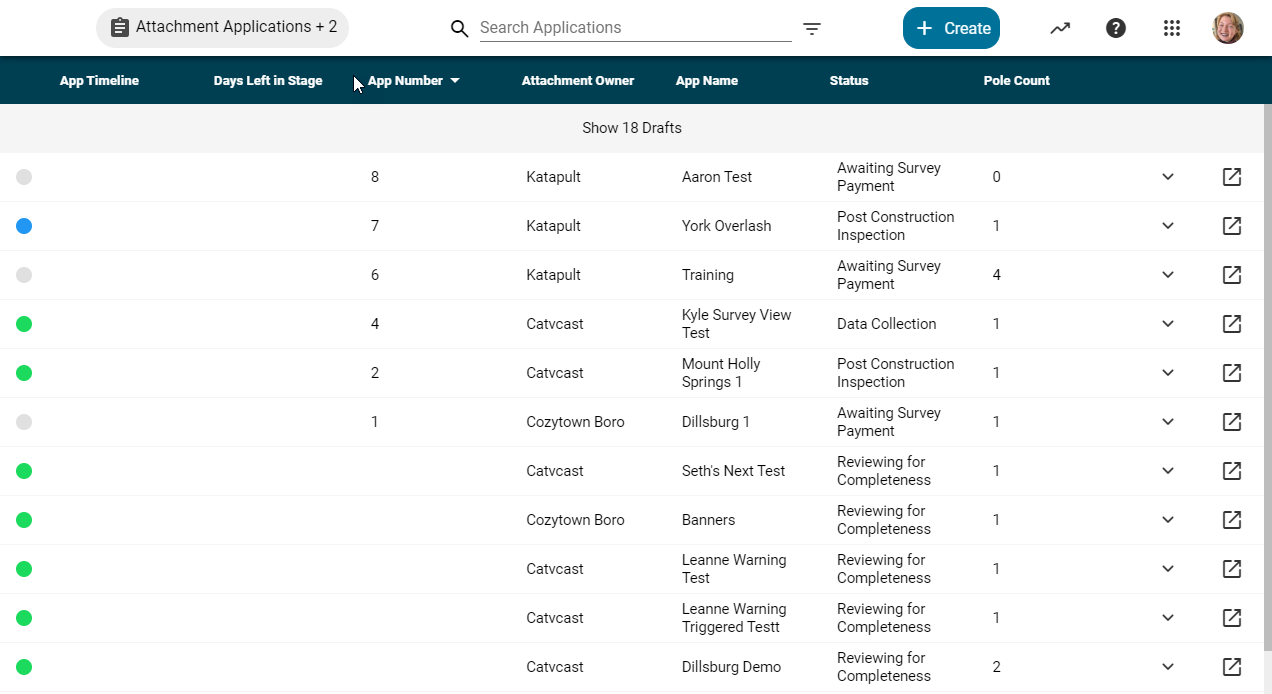
The App Overview dashboard displays all your applications and some of their attributes. Attributes will show up as headers in the App Overview. Some attributes may include "App Name" (the name you gave the application when you created it), or application "Status."
Organizing the App Overview Dashboard
You can organize your view of the App Overview in multiple ways.
- Click on the headers to order applications by their attributes.
- Filter applications by types by clicking on the "Attachment Applications" to the left of the toolbar.
- Use keywords in the search bar to look up specific applications.
- The funnel next to this search bar has three toggles and an attribute filter. Use the toggles to show or hide completed or canceled apps, drafts, and archived apps. The attribute filter includes a list of application (or job) attributes for filtering a more detailed search.
Notice the expandable arrow on the far right of a row? Click this to see more detailed attributes for the application.
The square pop out button will open the App View for that specific application. Again, in this App View in the bottom right corner of the screen, the software will display any actions you can take.
Status Glossary
Understanding the status of your application is important for taking necessary action to progress your application through its lifecycle. The following are some common statuses that may be used in the attachment portal you're using:
- Draft - Applicant is creating the application. This includes selected poles that they are applying to attach to, as well as entering the required information.
- Reviewing for Completeness - The Review Contractor is reviewing the application. This ensures that the application has all the necessary information to proceed.
- Incomplete - Not enough information to proceed. The Applicant must revise the application, filling out any inputs that were originally missed.
- Awaiting Payment - Applicant needs to pay the invoice. The utility company will mail an invoice to the billing address provided in the application.
- Data Collection - Review Contractor will conduct predesign and data collection. In this stage, the utility poles in the attachment application will be predesigned and collected out in the field, then uploaded to the Attachment Portal.
- MR Engineering - Review Contractor begins the clearance and pole loading Make Ready (MR) Engineering. Uploaded photos are classified and calibrated, associated to the proper utility poles, and existing conditions are annotated. Finally, make ready engineering and pole loading analysis are conducted.
- MR Engineering Complete - Review Contractor generates the MR notification and send it to all parties. This will be sent to the person designated in the Admin page for MR notifications.
- Released - A permit is automatically generated, and the Applicant can install their attachment.
Contact your portal administrator if you are unsure what a status means for your application.
Admin User Dashboard
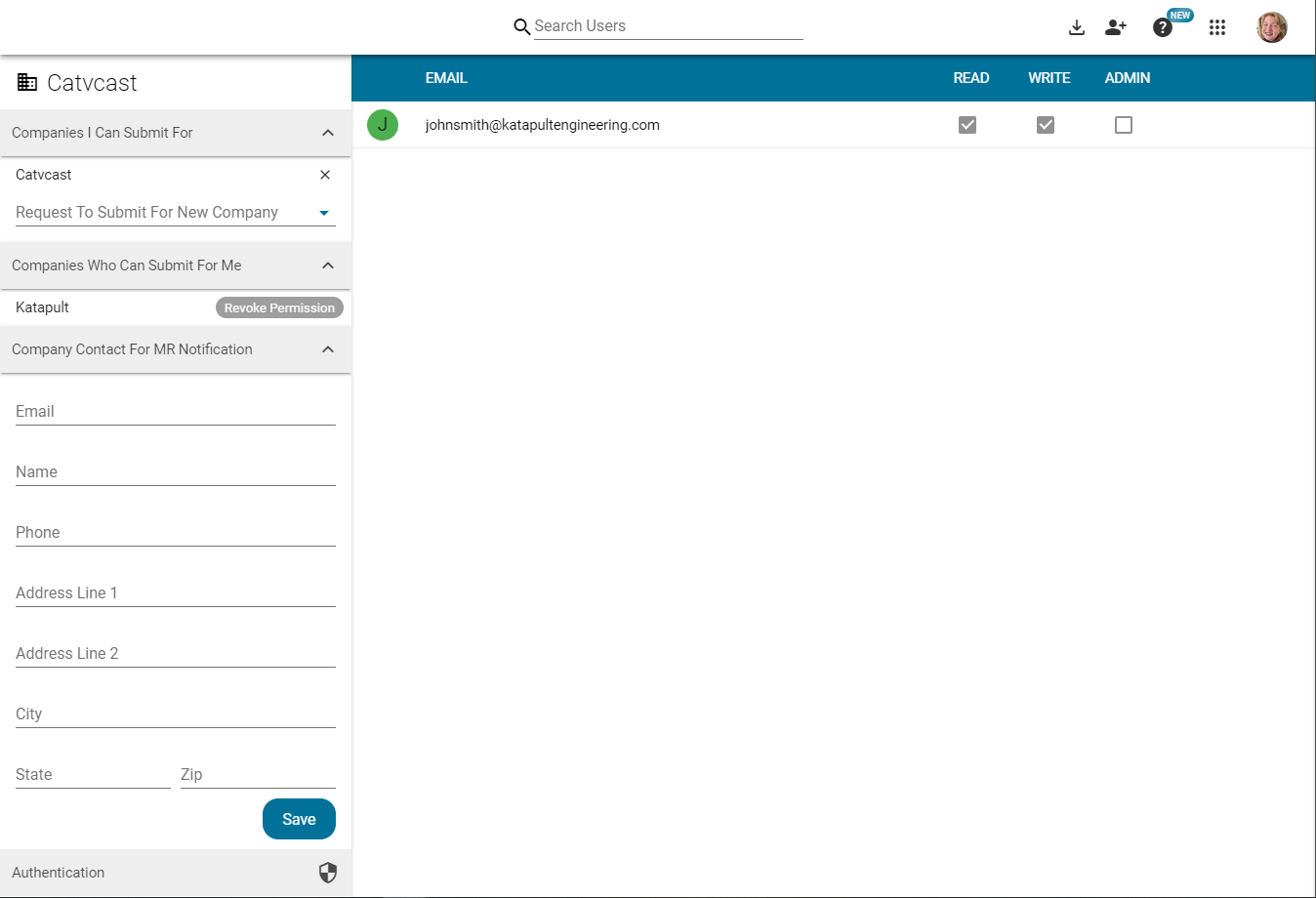
Only Admin users have access to the Admin User Dashboard. Click on the App Tray to find the Admin page. You will notice a list of users and a panel on the left.
Search Users
Above the list of users, there is a search bar in the top middle of the screen; use this to search for specific users and narrow the list. Once you find the user you're looking for, click on their email to change their permissions, reset their password, or edit their contact information.
User Options

Click on the toggles to change the permissions (read, write, and admin). You don't need write permissions in order to be an admin user.
To reset the password, click on the "Reset Password" reverse clock icon. A pop-up will ask you to confirm that you want to reset the password for the selected user. If you click "Send Reset Link," this will send an email to that user's listed email for them to complete the reset process.
To edit the contact information, click on the vertical three-dot menu in the top right corner of the user details and click "Edit Contact Information." Here you can fill out the user's first name, last name, street address, and phone number.
Company Options

The left-hand panel on the Admin dashboard includes companies you can submit for, companies who can submit for you, a company contact for MR notifications, and authentication.
Requesting to Submit for a Company
You can remove a company from the "Companies I Can Submit For" section by clicking on the black "x" next to the company's name. There is also a drop down that reveals a "Request To Submit For New Company" option. The drop down will show an active list of companies in the attachment portal that you can choose from.
Approving a Company to Submit on Your Behalf

You'll see requests to submit on your behalf in "Companies Who Can Submit For Me." New requests will show two options: Approve or Deny. For companies that can currently submit for you, they will have one option: Revoke Permission.
Authentication

In the authentication tab, when you click to open it, displays specific options for authentications. You can toggle on the Multi-Factor Authentication, which will require all the users in your company to authenticate with an email confirmation code when they log in.
You can require all users to change their password after a certain number of days with the Password Expiration Policy section. (The server automatically expires passwords after 90 days.)
Those are the basics of how to use your attachment application portal! Should you need help, use the contact information provided by the attachment application portal owners. How can we improve our documentation? Leave a comment below!